 how-to
Automate Service Appointment Reminders for Business
Table of Contents
- Why Automate Service Appointment Reminders
- How to Reduce Appointment No-Shows
- Best Appointment Reminder Software for Small Business
- Appointment Reminder Text Message Templates and Best Practices
- Appointment Reminder Best Practices for Service Businesses
- Setting Up Automated Reminders: Key Steps
- Compliance and Legal Considerations
- Measuring Success and Troubleshooting
Last Updated: August 7, 2026
Why Automate Service Appointment Reminders
No-shows drain service businesses by eliminating job revenue and wasting crew time. Automating appointment reminders reduces no-shows, improves cash flow, and eliminates manual follow-up work. For a landscaping company with five crews, even a 10% no-show rate translates to significant monthly losses. Automated reminders cut no-shows dramatically by keeping appointments top-of-mind.
Beyond reducing no-shows, automation improves customer experience. Clients appreciate confirmation that their appointment exists and value the ability to reschedule without calling. Two-way messaging lets customers reply to confirm or request changes, reducing inbound call volume and speeding up confirmation workflows.
SolvPro integrates appointment reminders directly with scheduling and crew dispatch as part of its field service management platform. Whether you use a dedicated reminder tool or an all-in-one system, the principle remains: automation replaces manual calls and emails with scalable, consistent communication.
How to Reduce Appointment No-Shows
No-shows stem from customers forgetting, misunderstanding the time, or not receiving confirmation. Reducing them requires a multi-layered approach.
Confirmation: Send an immediate message after booking with the date, time, location, and what to expect. Many no-shows stem from confusion, not forgetfulness.
Reminder sequence: Best practice is two touches: an initial reminder 24 hours before, then a second the morning of. This keeps the appointment visible without feeling intrusive.
Easy rescheduling: If rescheduling requires a phone call, many customers won't bother. Two-way messaging lets them reply "Can't make it, reschedule for Tuesday?" and your system can offer available slots or route the request to your office.
Follow-up on missed appointments: If a customer misses an appointment, send a message within hours offering to reschedule. This captures them before they've moved to a competitor.
Best Appointment Reminder Software for Small Business
SolvPro
SolvPro is an all-in-one field service management software designed to help small to medium-sized service businesses eliminate operational chaos. It centralizes scheduling, work orders, crew tracking, and customer communication in one platform, so reminders integrate seamlessly with dispatch workflows.
The platform includes automated SMS and email reminders tied directly to scheduled appointments. Bilingual support in English and Spanish reaches your entire customer base, critical for landscaping, construction, and cleaning companies in diverse markets. SolvPro integrates with QuickBooks Online, syncing appointment confirmations and customer data automatically.
Best for: Service businesses with 3-20 crews needing appointment reminders as part of a larger scheduling and dispatch system.
Pros:
- All-in-one platform eliminates tool-switching
- Bilingual support built-in
- QuickBooks integration for accounting sync
- Mobile-first design for field crews
- Free trial available
Cons:
- Broader feature set means steeper learning curve
- Pricing scales with team size
Calendly
Calendly is a scheduling and automation platform ideal for consultation-based appointments. Clients visit your booking page, select available time slots, and automatically receive email and SMS reminders (on paid plans). It syncs with Google Calendar, Outlook, and iCloud, keeping availability current across all calendars. Custom branding white-labels the booking page to match your business.
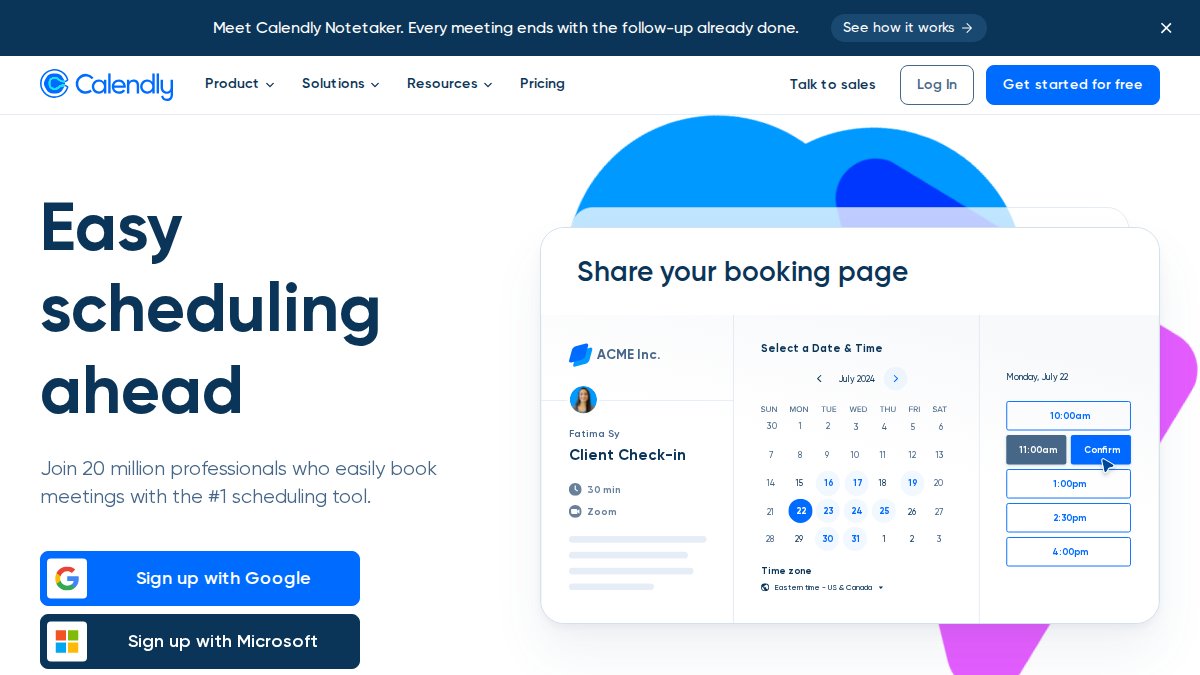
Calendly's strength is simplicity and integration breadth through Zapier, HubSpot, Stripe, and PayPal, letting you build custom workflows like adding appointment data to a CRM or triggering payment collection automatically.
Best for: Consultants, trainers, and service professionals handling mostly one-on-one appointments.
Pros:
- Free plan includes basic scheduling and email reminders
- Excellent integration ecosystem
- Clean, modern interface
- No learning curve for small teams
Cons:
- SMS reminders only on paid plans
- Limited for multi-location or multi-staff scheduling
- Doesn't integrate with accounting software
Acuity Scheduling
Acuity Scheduling, owned by Squarespace, automates client bookings, sends email and SMS reminders, collects payments, and manages client intake through customizable forms. It supports multiple calendar views for different staff members or locations. Automated reminders are included at all pricing tiers with customizable messaging and timing.
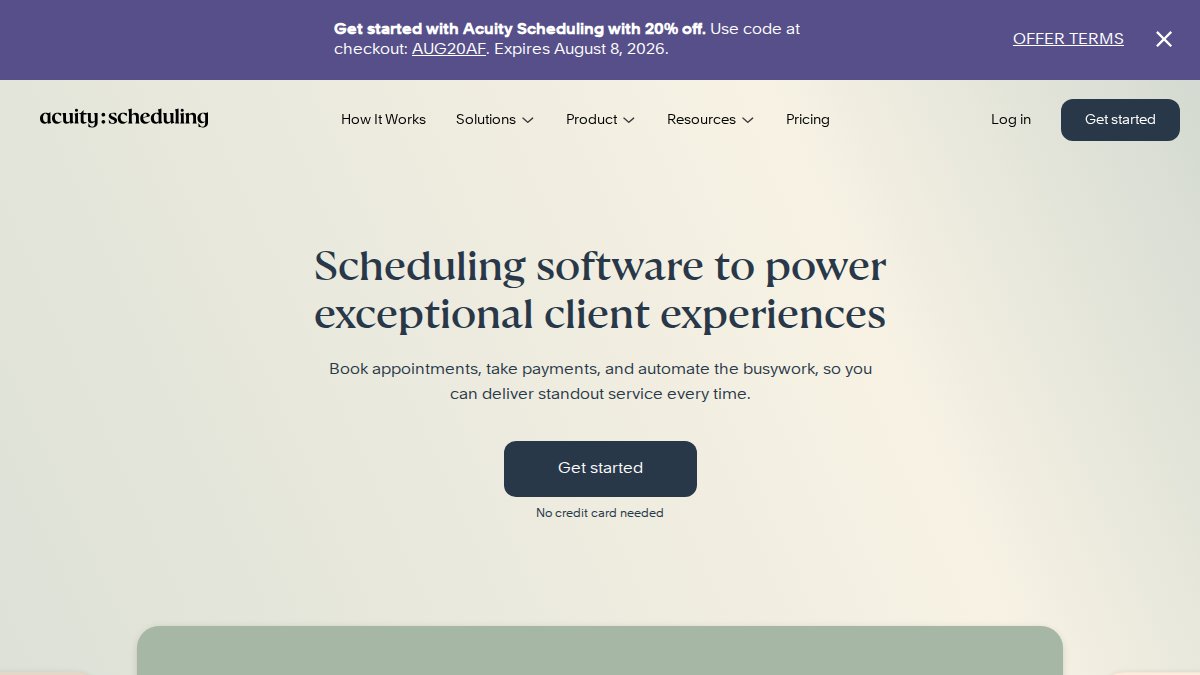
Acuity integrates with Stripe, Square, PayPal, Google Calendar, and Zoom, providing a solid all-in-one solution if you're not already using a broader field service platform.
Best for: Small service businesses (salons, coaching practices, training studios) needing scheduling, payments, and client reminders in one tool.
Pros:
- Comprehensive feature set for service scheduling
- Automated reminders reduce no-shows significantly
- Customizable intake forms capture client information upfront
- Multiple calendar support for multi-staff operations
Cons:
- No free plan (7-day trial only)
- HIPAA compliance only on premium tier
- Pricing can add up with add-on features
Setmore
Setmore is a budget-friendly scheduling platform for solo providers and small teams. Its generous free plan supports up to four users and includes automated email reminders. It syncs with Google Calendar, Zoom, Stripe, and Square.
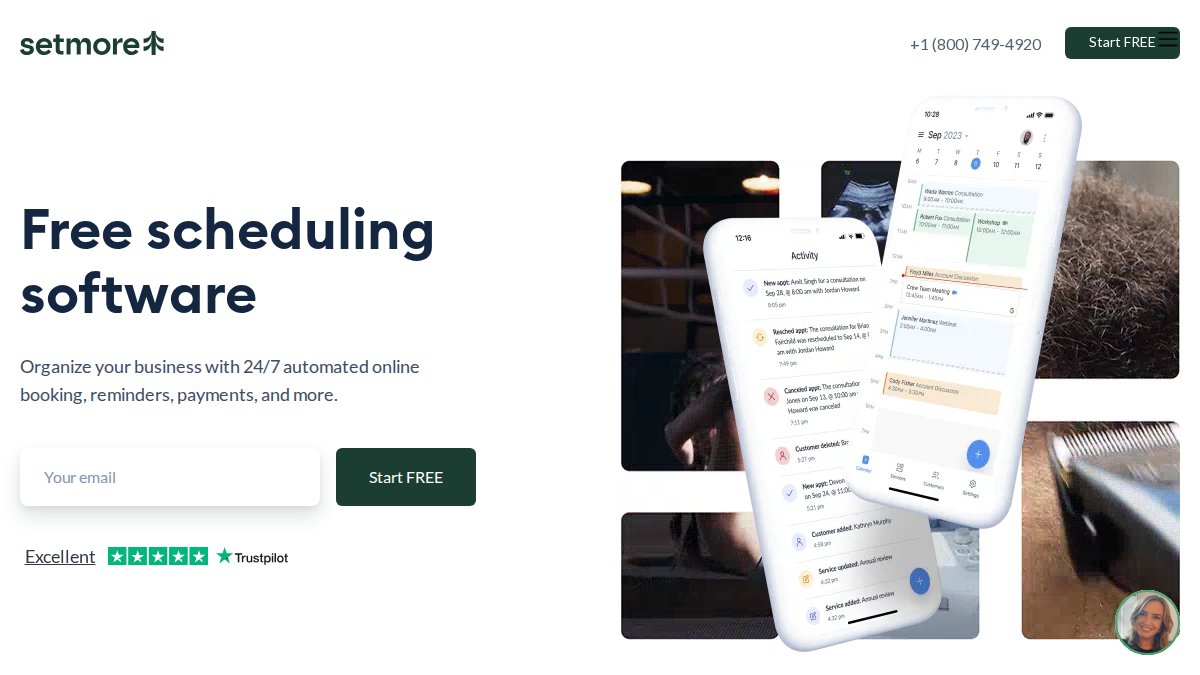
Setmore's simplicity is its strength. Setup takes minutes with almost no training required, removing barriers to adoption for solo landscapers or small cleaning services.
Best for: Solo service providers or very small teams (1-4 people) wanting a free or low-cost scheduling and reminder solution.
Pros:
- Generous free plan with multiple users and email capability
- Extremely affordable paid plans
- Simple, intuitive interface
- Fast setup with minimal configuration
Cons:
- SMS reminders not included on free plan
- Limited customization compared to enterprise solutions
- Two-way calendar sync not available on free tier
Square Appointments
Square Appointments integrates scheduling and reminders directly with Square's payment processing system. If you're already using Square for payments, appointments adds scheduling and automated reminders without switching platforms. The free plan includes online booking, email and SMS reminders, and Google Calendar sync.
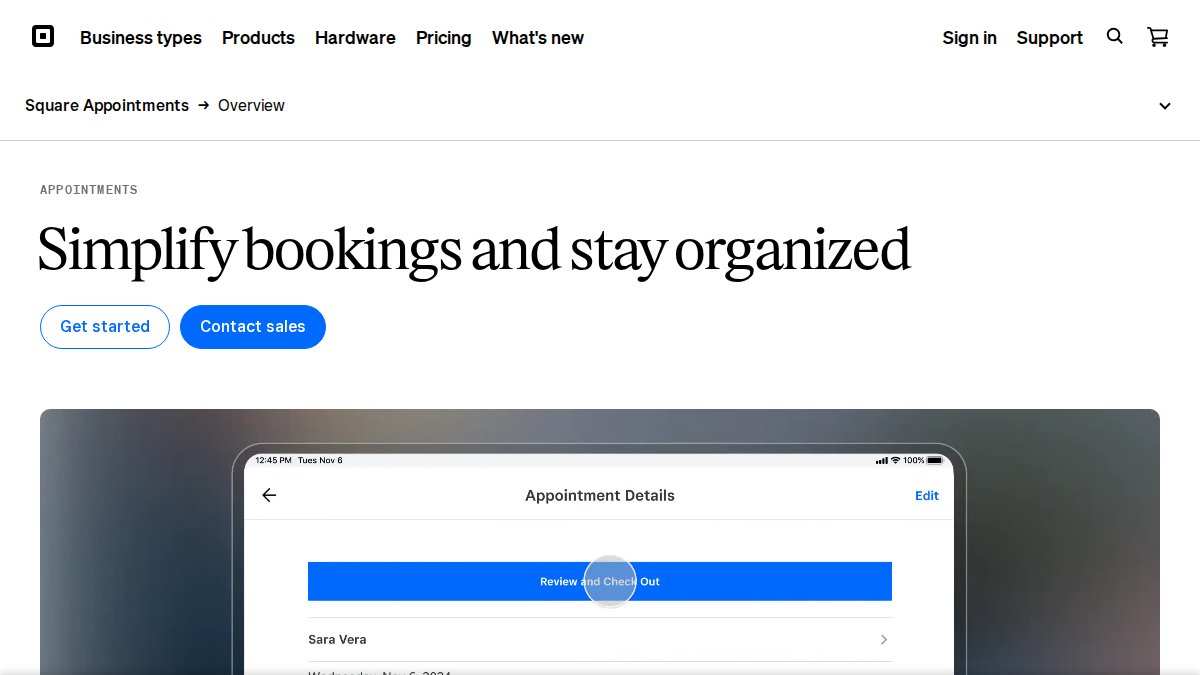
Square Appointments works well for service businesses that also sell products and want one unified system. Customer data flows seamlessly between appointments, payments, and your Square register.
Best for: Service businesses already using Square for payments who want to add scheduling and reminders without adopting a separate tool.
Pros:
- Free plan includes SMS and email reminders
- Seamless integration with Square's payment system
- One dashboard for appointments, payments, and customer data
- No learning curve if you already use Square
Cons:
- Free plan limited to one staff member
- Locked into Square's payment processing
- Limited customization for booking pages
Appointment Reminder Text Message Templates and Best Practices
Effective reminders balance clarity with brevity. SMS messages have character limits, and customers respond better to personal messages rather than robotic ones.
Template 1: 24-Hour Reminder
"Hi [Customer Name], this is a reminder that your [Service Type] appointment is scheduled for [Date] at [Time] with [Company Name]. Reply C to confirm or call [Phone Number] to reschedule."
Template 2: Same-Day Reminder
"Reminder: Your appointment with [Company Name] is today at [Time] at [Address]. We're looking forward to seeing you. Reply with any questions."
Template 3: Rescheduling Opportunity
"Can't make your [Date] appointment? Reply with a preferred date/time, or call [Phone Number]. We're flexible and want to work with your schedule."
Best practices:
Keep messages under 160 characters when possible. Use the customer's name, personalization increases engagement. Include the service type and time. Offer an easy reply option like "Reply C to confirm" rather than requiring a phone call. Test timing with your customer base and track no-show rates. Respect opt-in requirements and only message customers who have explicitly agreed to SMS communication.
Appointment Reminder Best Practices for Service Businesses
Automating reminders is only half the battle. Implementation determines whether they reduce no-shows or annoy customers into opting out.
Segment reminders by customer type. New customers need detailed reminders with directions and expectations. Repeat customers need less hand-holding. Tailor content and timing based on customer history.
Use two-way messaging. Customers want to confirm, ask questions, or reschedule without calling. SMS replies let customers interact directly, reducing phone volume and speeding up confirmations.
Automate the confirmation workflow. When customers reply to confirm, log that confirmation automatically. Don't make staff manually track replies.
Set reminders based on appointment type. A routine maintenance appointment needs a simple reminder. A first-time service appointment needs detailed information with directions and preparation instructions.
Monitor opt-out rates. If customers unsubscribe from SMS or mark emails as spam, you're messaging too frequently or with the wrong tone. Adjust cadence and messaging based on feedback.
Integrate reminders with scheduling. Reminders should pull directly from your scheduling system, not require manual setup. This prevents reminders being sent for cancelled appointments or containing outdated information.
Setting Up Automated Reminders: Key Steps
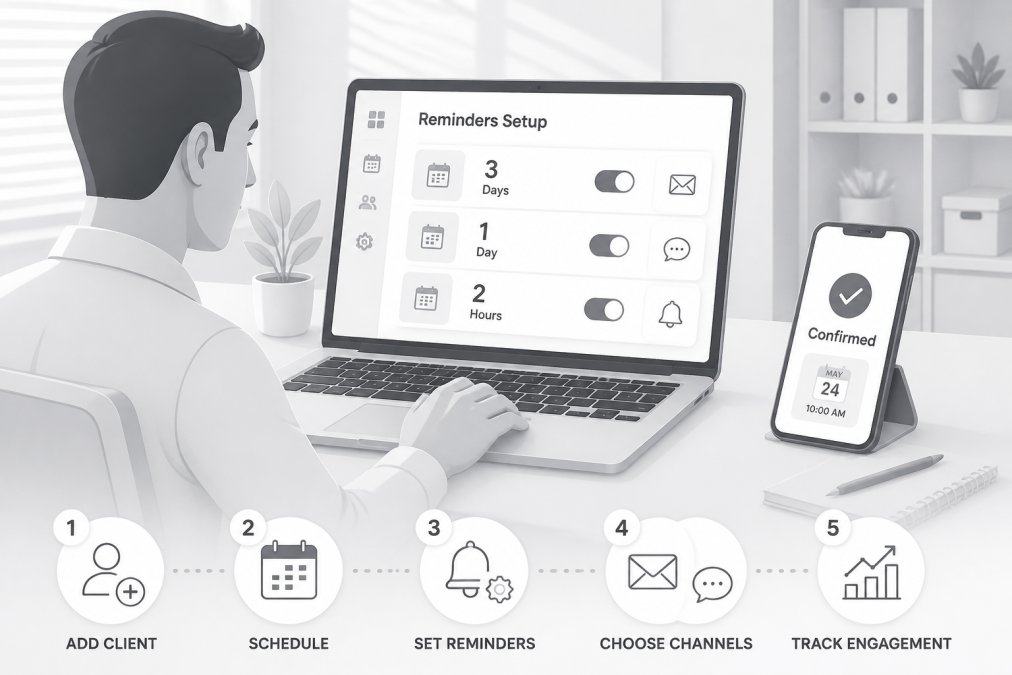
Step 1: Choose your platform and create an account. Select a scheduling tool that fits your business size and workflow. Most platforms offer free trials.
Step 2: Connect your calendar and payment system. Link your Google Calendar, Outlook, or iCloud so appointments sync automatically. Connect your payment processor (Stripe, Square, PayPal) so payments are tracked alongside appointments.
Step 3: Configure reminder settings. Set the number of reminders (typically two: 24 hours before and morning-of), the channel (SMS, email, or both), and timing.
Step 4: Create reminder message templates. Write templates for different scenarios: initial confirmation, 24-hour reminder, same-day reminder, and rescheduling prompts. Keep messages concise with all essential details.
Step 5: Set up two-way messaging rules. If your platform supports SMS replies, configure how they're handled. Should "C" trigger automatic confirmation? Should "reschedule" create a follow-up task for your office staff?
Step 6: Test with a small batch. Send reminders to a handful of upcoming appointments and monitor responses. Check that messages arrive on time with correct details and generate expected confirmations or rescheduling requests.
Step 7: Roll out to all appointments. Once testing confirms the setup works, enable reminders for all future appointments. Monitor no-show rates for the first month.
Step 8: Refine based on performance. After a month of data, review no-show rates, opt-out rates, and customer feedback. Adjust reminder timing, messaging, or frequency based on results.
Compliance and Legal Considerations
Automating appointment reminders involves customer communication, which is regulated in the United States. Understanding these requirements prevents legal problems.
Telephone Consumer Protection Act (TCPA): The TCPA governs SMS and voice reminders sent to cell phones. It requires prior express written consent before sending SMS messages. Customers must opt-in explicitly, not through buried checkboxes. Keep records of opt-in consent for at least two years. Violations carry fines up to $500-$1,500 per message.
Federal Communications Commission guidance on TCPA compliance clarifies that appointment reminders are permitted under TCPA, but only to customers who have consented.
CAN-SPAM Act: Email reminders are governed by the CAN-SPAM Act, which requires your business address in every email and a clear unsubscribe option. Appointment reminders are transactional emails, exempt from some CAN-SPAM requirements, but include an unsubscribe link for consistency.
State-specific SMS laws: Some states have additional SMS regulations beyond TCPA. California requires clear sender identification in SMS messages. Check your state's regulations if you operate in multiple states.
Data privacy: Customer phone numbers and email addresses are personal data. Ensure your reminder platform complies with data privacy laws like CCPA (California) or GDPR (international customers). Review the platform's privacy policy and data handling practices before signing up.
Bilingual compliance: If you serve Spanish-speaking customers, ensure reminders are available in Spanish. FTC guidance on serving limited English proficiency consumers requires critical information in the customer's language. Appointment details qualify as critical, so bilingual reminders aren't optional if your customer base speaks multiple languages.
Measuring Success and Troubleshooting
Automating appointment reminders is only effective if you measure impact and troubleshoot problems.
Key metrics to track:
No-show rate: Calculate the percentage of scheduled appointments resulting in no-shows before and after implementing reminders. A well-executed system typically reduces no-show rates by 20-40%.
Confirmation rate: How many customers confirm their appointment after receiving a reminder? Higher rates indicate reminders are reaching customers and prompting action.
Opt-out rate: What percentage of customers unsubscribe from SMS or email reminders? High opt-out rates signal messaging is too frequent or the tone is off.
Rescheduling rate: How many customers reschedule after receiving a reminder? This is positive, rescheduling is better than no-showing.
Message delivery rate: Are reminders actually reaching customers? Check delivery reports to ensure SMS and emails aren't bouncing or being blocked.
Common troubleshooting issues:
Reminders not being sent: Check that appointments are marked as confirmed and reminders are enabled for that appointment type. Verify customer phone numbers and emails are in correct format.
High opt-out rates: You're likely messaging too frequently or at inconvenient times. Reduce frequency to one message per appointment or switch timing. Review message tone; if it feels automated, customers are more likely to opt out.
Customers missing reminders: SMS can be delayed or filtered to spam. Use both SMS and email to reach customers through multiple channels. Ask customers how they prefer to receive reminders and respect those preferences.
Reminders sent at wrong time: Verify timezone settings are correct. Daylight saving time changes can cause timing issues if not configured properly.
Reminders for cancelled appointments: Ensure your cancellation workflow removes the appointment from the reminder queue. Automate cancellation-to-reminder logic to prevent this.
Frequently Asked Questions
What is the best way to automate appointment reminders?
The best approach combines scheduling software with integrated SMS and email capabilities. Platforms like SolvPro, Calendly, and Square Appointments allow you to set reminders automatically based on appointment timing. Choose a tool that integrates with your existing calendar system, offers customizable message templates, and supports two-way messaging so clients can confirm or reschedule directly. Start with a free trial to ensure it fits your workflow before committing.
How do automated appointment reminders reduce no-shows?
Automated reminders keep appointments top-of-mind by sending SMS, email, or push notifications at strategic times, typically 24 hours and 1 hour before the scheduled time. Studies show that two-way messaging, where clients can confirm or cancel by replying, increases engagement. This reduces no-shows by 20-50% depending on industry and reminder frequency. For service businesses, fewer no-shows mean better crew utilization, less wasted travel time, and improved cash flow.
What should be included in a professional appointment reminder message?
Effective appointment reminder text message templates include: the business name, appointment date and time, service type, location or technician name, and a clear call-to-action (confirm, reschedule, or cancel). Keep SMS messages under 160 characters for deliverability. Include a phone number or link for easy rescheduling. For email reminders, add more detail: service scope, pricing, what to prepare, and cancellation policy. Personalize with the customer's name and avoid generic templates that feel automated.
How often should you send appointment reminders to clients?
The optimal reminder cadence is two touchpoints: one 24 hours before the appointment and one 1-2 hours before arrival. This timing balances staying top-of-mind without overwhelming clients. For high-value or longer-duration appointments (like major construction or excavation work), a 3-day advance reminder can work well. Monitor your no-show rates and adjust frequency based on results. Some industries benefit from a day-before email followed by a same-day SMS. Always respect client opt-in preferences and offer frequency adjustments.
Automating service appointment reminders for business transforms how you manage your schedule and customer relationships. The right tool reduces no-shows, improves cash flow, and frees your team from manual follow-up work. SolvPro integrates appointment reminders directly into its field service management platform, so reminders sync automatically with scheduling, crew dispatch, and payments. Start with a free trial to test the workflow with your team, then scale as you grow.
This article was written using GrandRanker