 how-to
Digital Work Orders Offline: How They Work
Table of Contents
- Can You Use Digital Work Orders Offline?
- How Offline Mode Works in Mobile Work Order Apps
- Paper vs Digital Work Order Systems
- Key Features of Best Mobile Work Order Apps
- Field Service Management Best Practices for Offline Operations
- Data Sync Reliability: Troubleshooting Common Issues
- Choosing the Right Solution for Your Field Service Business
- Conclusion
Last Updated: August 15, 2026
Can You Use Digital Work Orders Offline?
Yes, you can use digital work orders offline. Modern mobile work order apps are designed to function without internet connectivity, allowing field technicians to continue completing jobs, capturing signatures, attaching photos, and logging time even when they're in areas with poor or no network coverage. The key is that these apps store work order data locally on the device and automatically sync everything back to your system once connectivity returns.
This capability has become essential for field service businesses. Whether your crews are working in remote locations, basements, underground areas, or simply in spots where cellular signals are weak, offline functionality ensures your operations don't grind to a halt. The difference between a tool that works offline and one that doesn't can mean the difference between finishing a job on schedule and losing hours to connectivity issues.
At SolvPro, we've built offline functionality into our platform because we understand the reality of field work. Your technicians shouldn't have to drive back to the office or find a coffee shop with WiFi just to update a work order. The work happens in the field, and your software should support that reality.
How Offline Mode Works in Mobile Work Order Apps
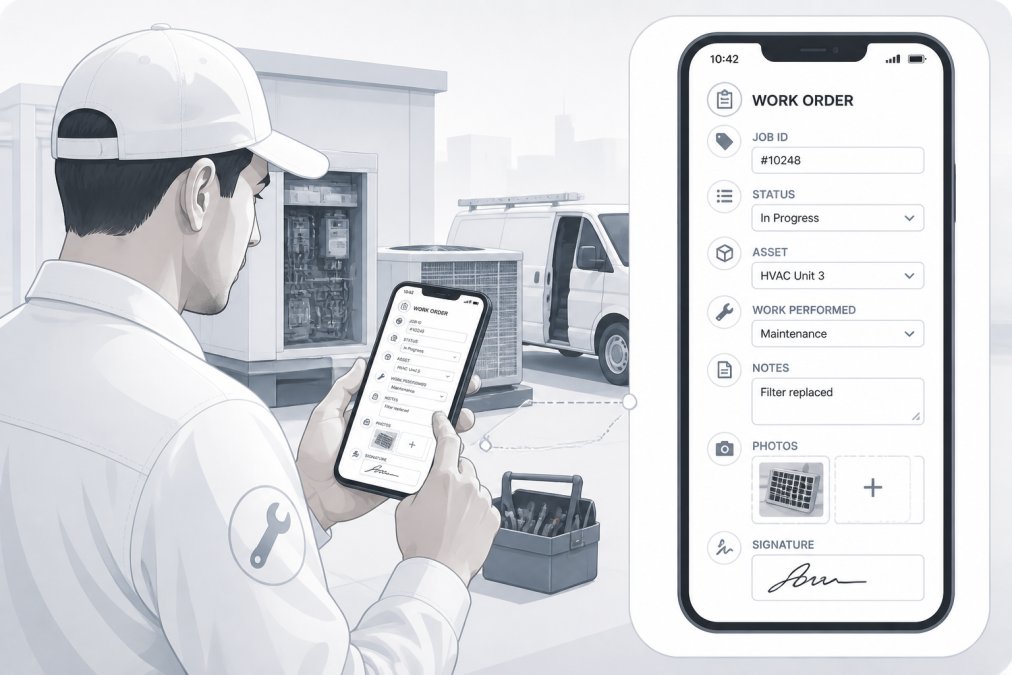
Offline mode operates through a combination of local storage and automatic synchronization. When a technician opens a work order on their mobile device, the app downloads all necessary data to the phone's storage. The technician can then access, edit, and complete that work order without any internet connection. Once the device reconnects to a network, the app automatically pushes all changes back to your central system.
Local Storage and Data Caching
When you sync a work order to a mobile device, the app stores a complete copy of that job's information locally. This includes the customer details, service description, pricing, any notes or special instructions, and any attachments like photos or previous service history. The app caches this data so it remains accessible even after you close the app or restart the device.
Local storage is what makes offline work orders practical. Rather than streaming data from the cloud every time a technician needs to view something, the data lives on the device itself. This approach also improves performance, accessing local data is faster than waiting for a network request to complete, even when connectivity is available.
The amount of data you can store locally depends on your device's available storage space and the app's design. Most modern work order apps are efficient enough that storing dozens of active work orders takes up minimal space, typically less than 100 MB even for a month's worth of jobs. This leaves plenty of room on phones and tablets for photos, signatures, and other job-related content.
Automatic Sync When Connectivity Returns
The real magic happens when your technician's device reconnects to the internet. Modern work order apps use intelligent synchronization logic to push all offline changes back to your central database. This happens automatically in the background, the technician doesn't need to manually trigger a sync or navigate to a settings menu.
Automatic sync typically occurs when the device detects a stable internet connection. Some apps sync over WiFi only to preserve cellular data, while others use either connection type. The sync process prioritizes important data like job completion status and customer signatures, ensuring critical information reaches your office system first.
Syncing happens quickly for most jobs. A typical work order with photos, signatures, and time logs syncs in seconds to a few minutes, depending on file sizes and connection speed. If a technician completes ten jobs while offline, all ten sync automatically once connectivity returns, without the technician having to do anything.
Paper vs Digital Work Order Systems
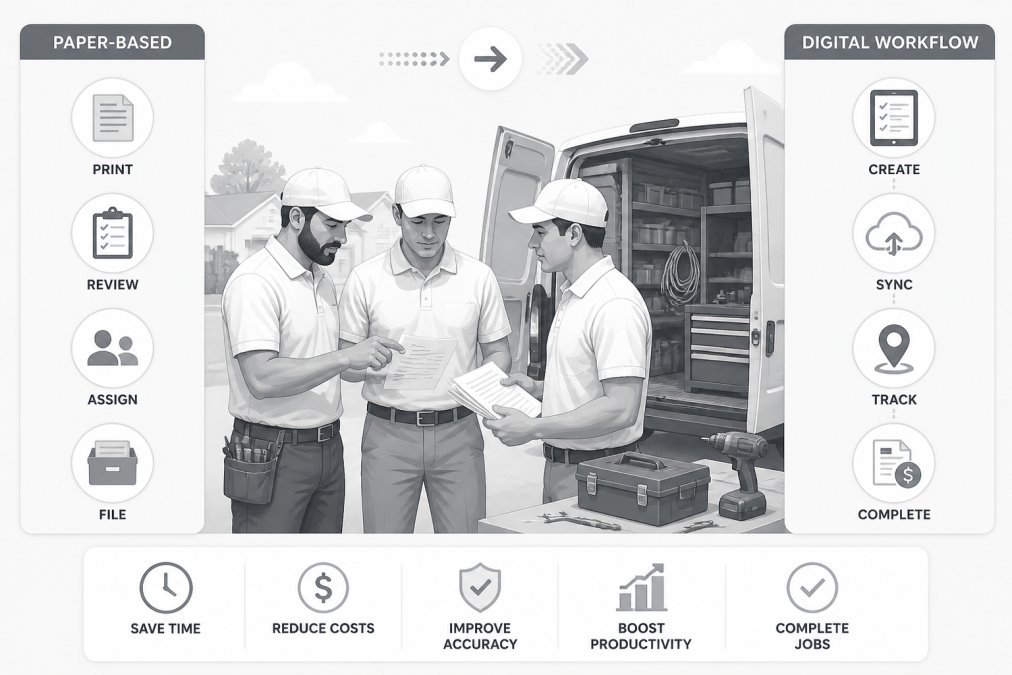
The comparison between paper and digital systems reveals why offline-capable mobile work orders have become standard for serious field service operations. Paper work orders require physical storage, manual data entry into your office system, and create multiple points where information gets lost or delayed. A technician might complete a job on Monday but not return to the office until Thursday, meaning your billing and scheduling systems don't reflect that work for days.
Digital work orders eliminate these delays. Even with offline functionality, the data flows from field to office automatically. Once a technician completes a job and the device syncs, your office staff sees that information immediately. Billing can be processed faster, scheduling can be updated in real time, and you have accurate visibility into what's actually happening in the field.
Digital systems also reduce errors. When a technician handwrites information on a paper form, office staff must interpret that handwriting and enter it into your system, introducing opportunities for mistakes. Digital work orders capture information once, in a standardized format, eliminating transcription errors.
The transition from paper to digital does require initial effort. Your team needs to learn the new system, and you need to ensure devices are charged and synced regularly. But the time savings quickly outweigh these adjustments. Most field service businesses report that digital work orders save 5-10 hours per week in administrative work compared to paper-based processes.
Key Features of Best Mobile Work Order Apps
The most effective mobile work order apps include several core features that make offline operation reliable and practical.
Digital Signatures and Photo Attachments
Digital signatures capture customer approval directly on the device, eliminating the need for paper documentation. A technician completes the work, the customer reviews it on the phone screen, and signs with their finger. That signature becomes part of the permanent work order record.
Photo attachments serve multiple purposes. Technicians can photograph the work before and after to document what was completed. These photos attach to the work order and sync automatically, providing visual proof of service for billing disputes or quality assurance. Photos also help office staff understand what happened on a job if questions arise later.
Both signatures and photos store locally during offline work, then sync with everything else once connectivity returns. This means a technician can capture a customer's signature even in a basement with no cell signal, and that signature will be securely stored in your system by the time they drive back to the office.
Real-Time Data Tracking and Job Completion
When a technician marks a job complete in the app, that status updates locally first, then syncs to your central system. From an office perspective, you see job completion reflected as soon as the technician's device reconnects. This creates near-real-time visibility into field operations.
Time tracking happens the same way. Many work order apps include built-in timers that track how long a technician spends on each task. This data syncs automatically, giving you accurate labor records without manual timesheets. You know exactly how long each job took, which helps with scheduling future similar work and identifying efficiency opportunities.
Field Service Management Best Practices for Offline Operations
Successfully managing field service operations with offline work orders requires intentional practices around data management, device maintenance, and team training.
First, ensure your technicians sync their devices regularly. The best time is typically at the end of each workday when they return to an office or vehicle with WiFi or cellular connectivity. If a technician finishes jobs but doesn't sync for several days, you lose visibility into completed work and delay billing. Build syncing into your end-of-day routine.
Second, monitor device storage and battery health. Devices with low storage space can't cache new work orders, and devices with degraded batteries may lose power before syncing. Establish a schedule for checking device health, perhaps monthly, and replace or repair devices that are struggling.
Third, train your team on what happens when connectivity fails. Technicians should understand that they can continue working offline, that their data is safe, and that everything will sync automatically. This confidence prevents panic and keeps productivity high even in dead zones.
Fourth, use work order assignment strategically. Assign jobs to technicians' devices before they head to the field, especially if you know they'll be in areas with poor connectivity. This ensures they have all the data they need for the entire day without relying on last-minute downloads.
Data Sync Reliability: Troubleshooting Common Issues
Even well-designed offline systems occasionally encounter sync problems. Understanding common issues and their solutions helps you maintain reliable operations.
Data Conflict Resolution
Data conflicts occur when the same work order is edited in two places before syncing. For example, if an office manager updates a job's pricing while a technician is still offline working on that same job, the system must decide which version is correct when the technician's device reconnects.
Most modern work order apps handle this through timestamp-based resolution, the most recent change wins. However, some apps allow you to configure conflict resolution rules. The best approach is to prevent conflicts by assigning work orders to specific technicians and not allowing office staff to modify jobs that are actively being worked in the field.
If conflicts do occur, your app should flag them clearly so you can review and manually resolve them if necessary. Don't ignore flagged conflicts; they indicate data inconsistency that could affect billing or customer satisfaction.
Battery and Storage Optimization
Offline work order apps consume battery power, especially when syncing large files like photos or when using GPS for location tracking. Technicians working long days in the field should carry charging cables or portable battery packs to ensure devices stay powered through the end of their shift.
Storage optimization involves regularly clearing old work orders from devices once they've synced and been archived. Most apps include an automatic cleanup feature that removes synced data after a configurable period. Enable this feature to prevent devices from becoming so full that they can't cache new work orders.
Security Protocols for Offline Data
When work order data lives on a device, that device becomes a potential security risk if lost or stolen. Implement these security practices: require device passwords or biometric authentication, enable remote wipe capabilities so you can erase data from lost devices, and encrypt sensitive data both at rest on the device and in transit during syncing.
Ensure your app uses HTTPS encryption for all data transmission. When a device syncs, all data should be encrypted during the transfer to your servers. This prevents interception of customer information or payment details.
Additionally, establish a policy for handling devices that are lost or damaged. Your team should know to report missing devices immediately so you can remotely wipe them. For damaged devices, ensure data is securely erased before disposal or recycling.
Choosing the Right Solution for Your Field Service Business
Selecting a mobile work order app with reliable offline functionality requires evaluating several factors specific to your operation.
First, assess your connectivity reality. If your crews work primarily in urban areas with strong cellular coverage, offline functionality matters less. If they regularly work in rural locations, underground, or in buildings with poor signal penetration, offline capability becomes critical. Map out your typical service areas and note where connectivity is weak.
Second, evaluate your team's technical comfort level. Some apps are more intuitive than others. If your technicians aren't particularly tech-savvy, choose an app with a simple interface and clear offline indicators so they understand when they're working offline versus online.
Third, consider integration requirements. Your work order app should integrate with your accounting software, scheduling system, and customer database. If offline work orders can't sync properly with your existing systems, you've created a data management problem rather than solving one.
Fourth, test the app with a small group before full rollout. Have a few technicians use it for a week in real field conditions, including areas with poor connectivity. Their feedback will reveal whether the offline functionality works as advertised in your specific environment.
SolvPro is designed for field service businesses that need reliable offline work orders combined with bilingual support and seamless integrations. The platform allows technicians to work offline with full access to work order details, capture digital signatures and photos, and automatically sync everything when connectivity returns. With bilingual support in English and Spanish, SolvPro accommodates crews with mixed language preferences, and QuickBooks Online integration ensures your accounting stays current with field operations.
The challenge with field service operations isn't just managing work orders, it's keeping your team productive regardless of connectivity and getting paid faster by eliminating administrative delays. Digital work orders with reliable offline functionality solve both problems. Start your free trial with SolvPro and experience how offline-capable work orders can simplify your scheduling, reduce paperwork, and help your crews finish jobs faster while keeping your office systems current in real time.
Frequently Asked Questions
Can you use digital work orders offline?
Yes. Most modern mobile work order apps store work order data locally on the technician's device, allowing them to access and complete jobs without internet connectivity. Once the device reconnects to the network, the app automatically syncs all changes back to your cloud system. This offline-first approach keeps field teams productive even in areas with unreliable network coverage, which is critical for field service management in remote locations.
How does data synchronization work after reconnection?
When your mobile device regains internet connectivity, the app detects the connection and automatically uploads all locally stored changes to the cloud. The system timestamps each update to ensure data integrity. If the same record was modified in multiple places, conflict resolution protocols identify and flag the discrepancy so your team can review and correct it before finalizing the sync. This automatic sync prevents lost data and keeps your field service management system current.
What are the main differences between paper and digital work order systems?
Paper work orders require manual transcription into your office system, creating delays and errors. Digital work orders capture data once in the field and sync automatically, eliminating re-entry. Digital systems provide real-time visibility into job status, technician location, and completion photos, information paper cannot offer. They also enable instant payment processing and reduce administrative overhead. For growing field service businesses, digital work orders compress the time between job completion and cash collection by days.
What security measures protect offline work order data?
Best-practice mobile work order apps use device-level encryption for data stored locally on technician phones, so sensitive customer information and service details remain protected if a device is lost. Authentication requirements ensure only authorized users can access work orders. When syncing to the cloud, data travels over secure HTTPS connections. Additionally, audit logs track who accessed or modified each work order, supporting compliance and accountability across your field service operation.
This article was written using GrandRanker